SurvNet Import
⚠️ Disclaimer: The video tutorials on this page are in German and are not available in English. Please follow the written instructions if you need an English reference.
This page explains the interface to SurvNet.
You will first learn how to generate queries in SurvNet so that the resulting data can be imported into GENTRAIN.
It also covers how to save these queries for later use and how to locate them again in SurvNet.
The video below demonstrates the complete process. Alternatively, or for future reference, you can follow the written instructions provided.
Video Tutorial
Creating Queries in SurvNet
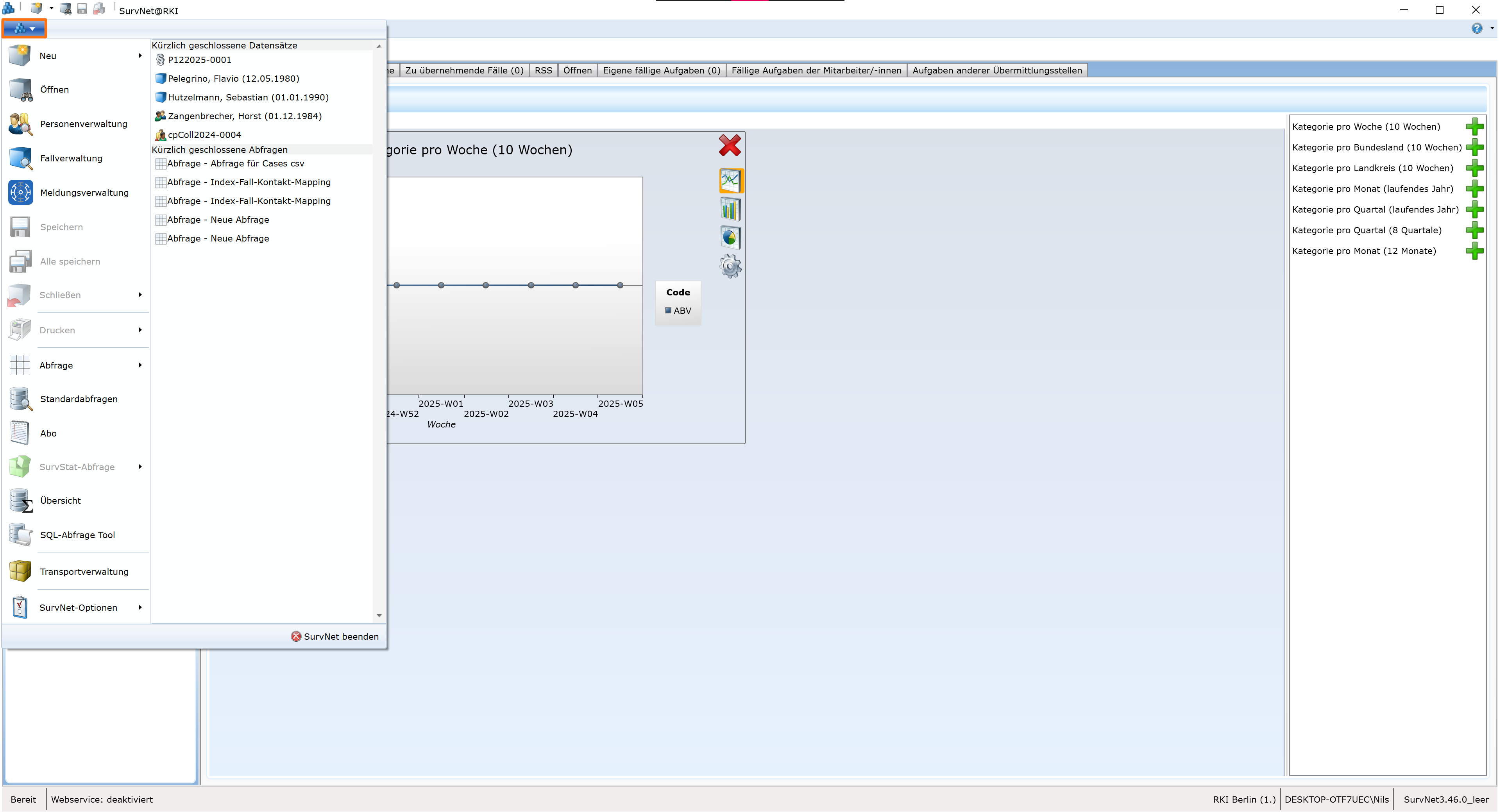
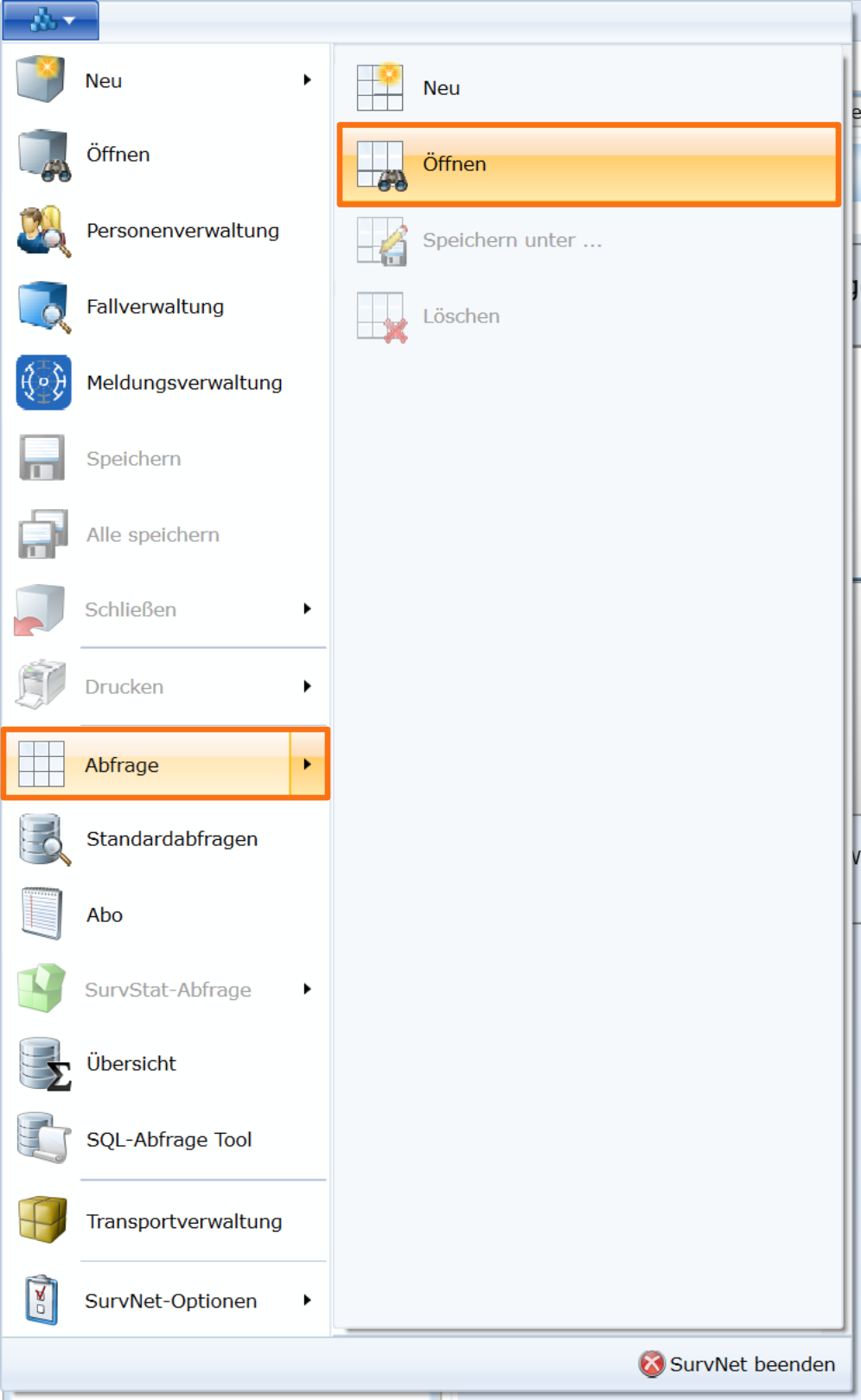
Start SurvNet and open the drop-down menu in the top-left corner of the window by left-clicking the blue button with the SurvNet logo.
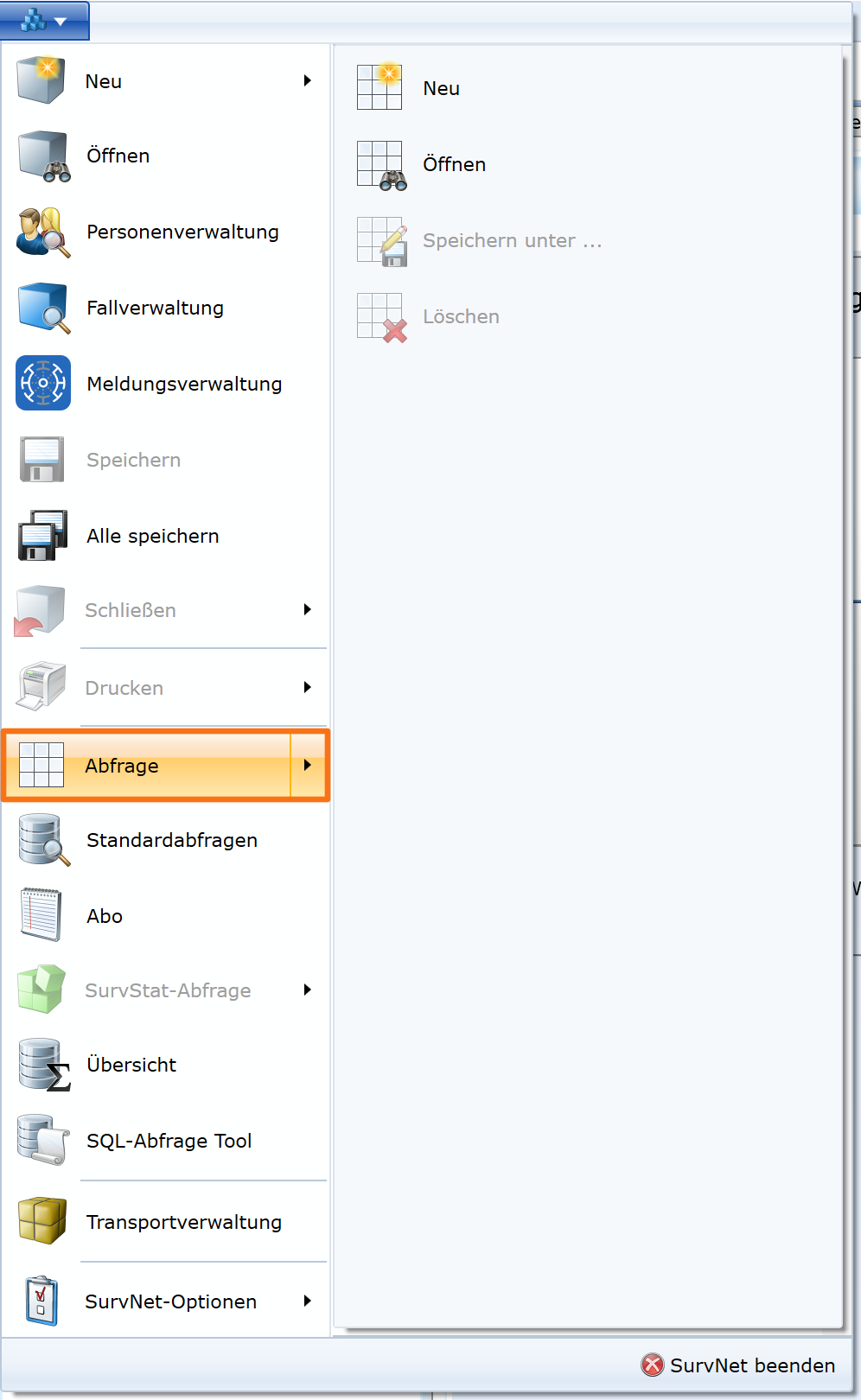
Then click a little further down in the menu on the field “Abfrage” (Query), which will open a tab for creating a new query.
Case Data Query (Falldaten-Abfrage)
First, create a query for Falldaten.
Enter a name in the “Abfragename” field under which this query will be saved and can be located later (e.g., “GENTRAIN Falldaten”).
You may also add additional information in the Kontext and Beschreibung fields.
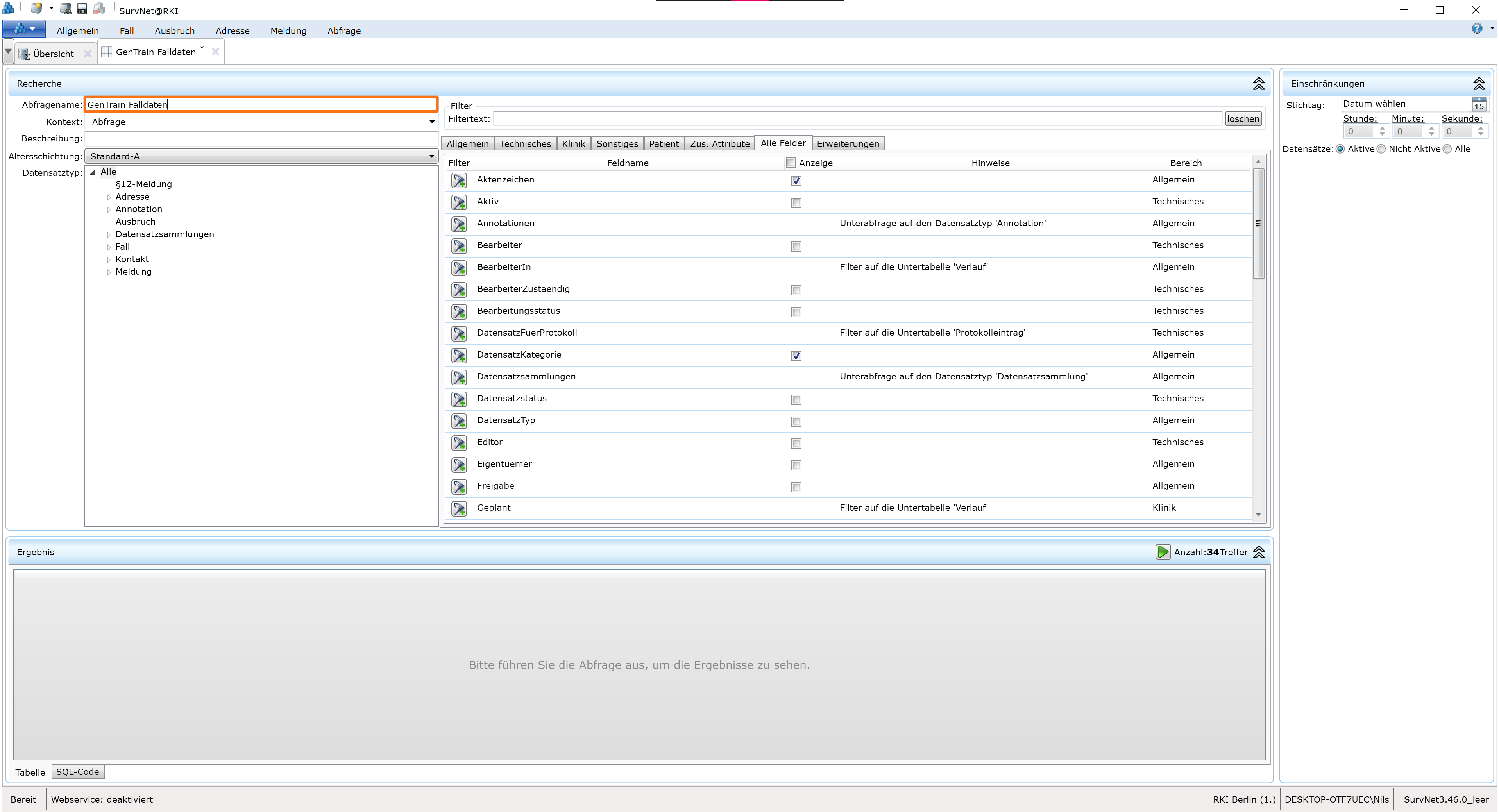
Next, select the Datensatztyp (dataset type) under Fall corresponding to the pathogen you want to analyze in GENTRAIN. In this example, we use a COVID-19 dataset.
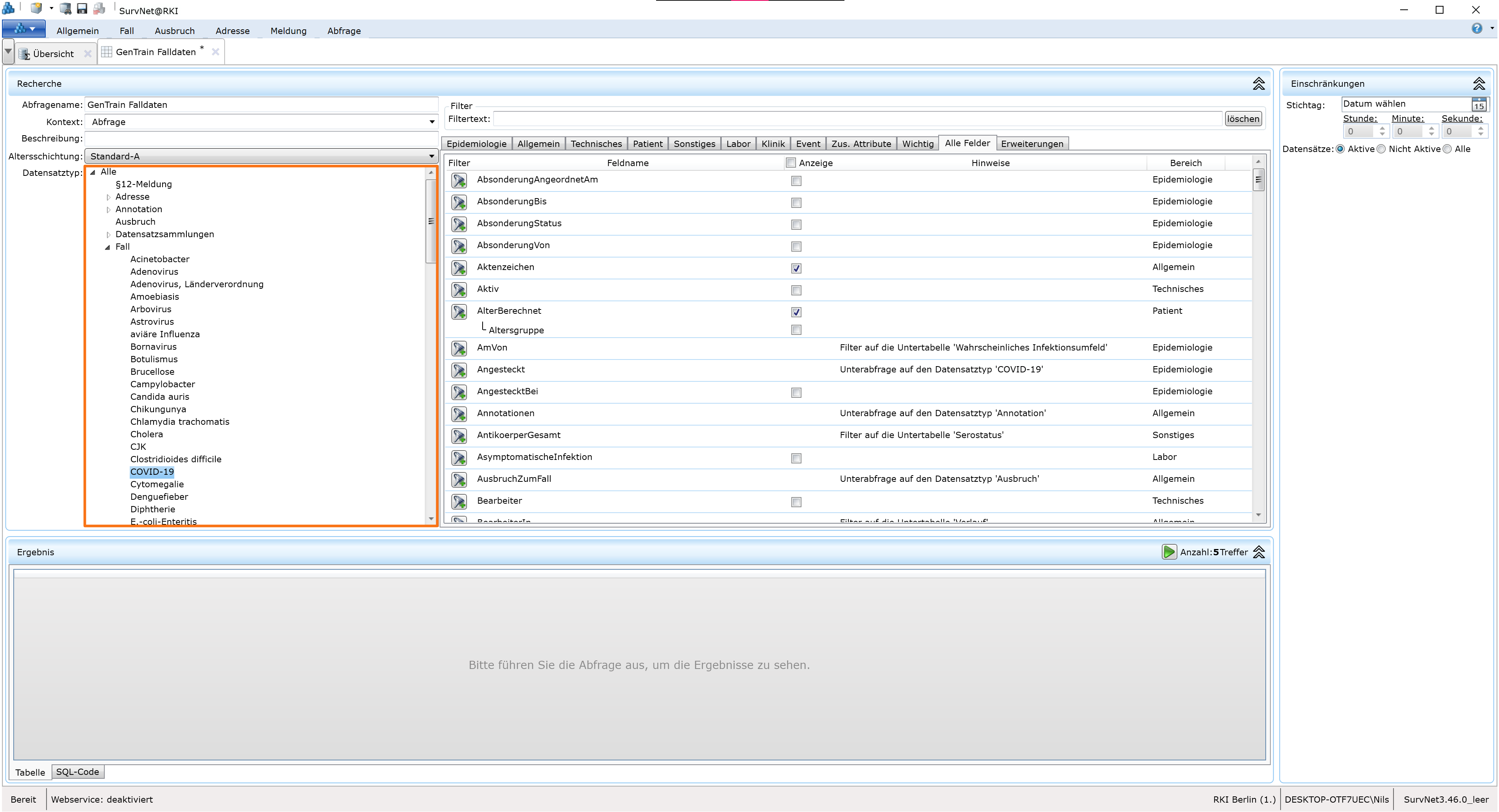
Then select the fields to export, located to the right of the Datensatztyp list.
Use the search bar “Filtertext” above the field list to quickly locate the required fields.
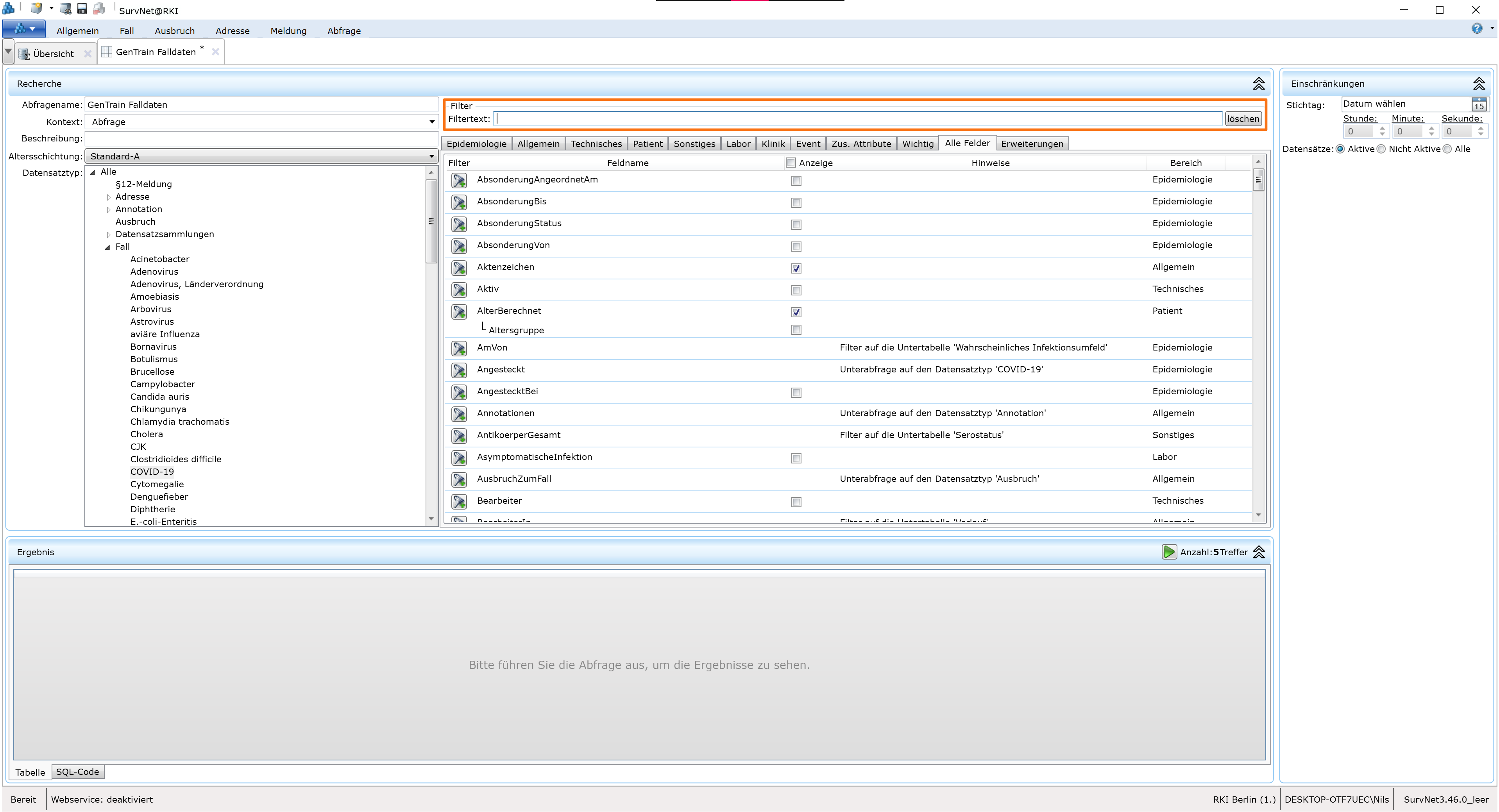
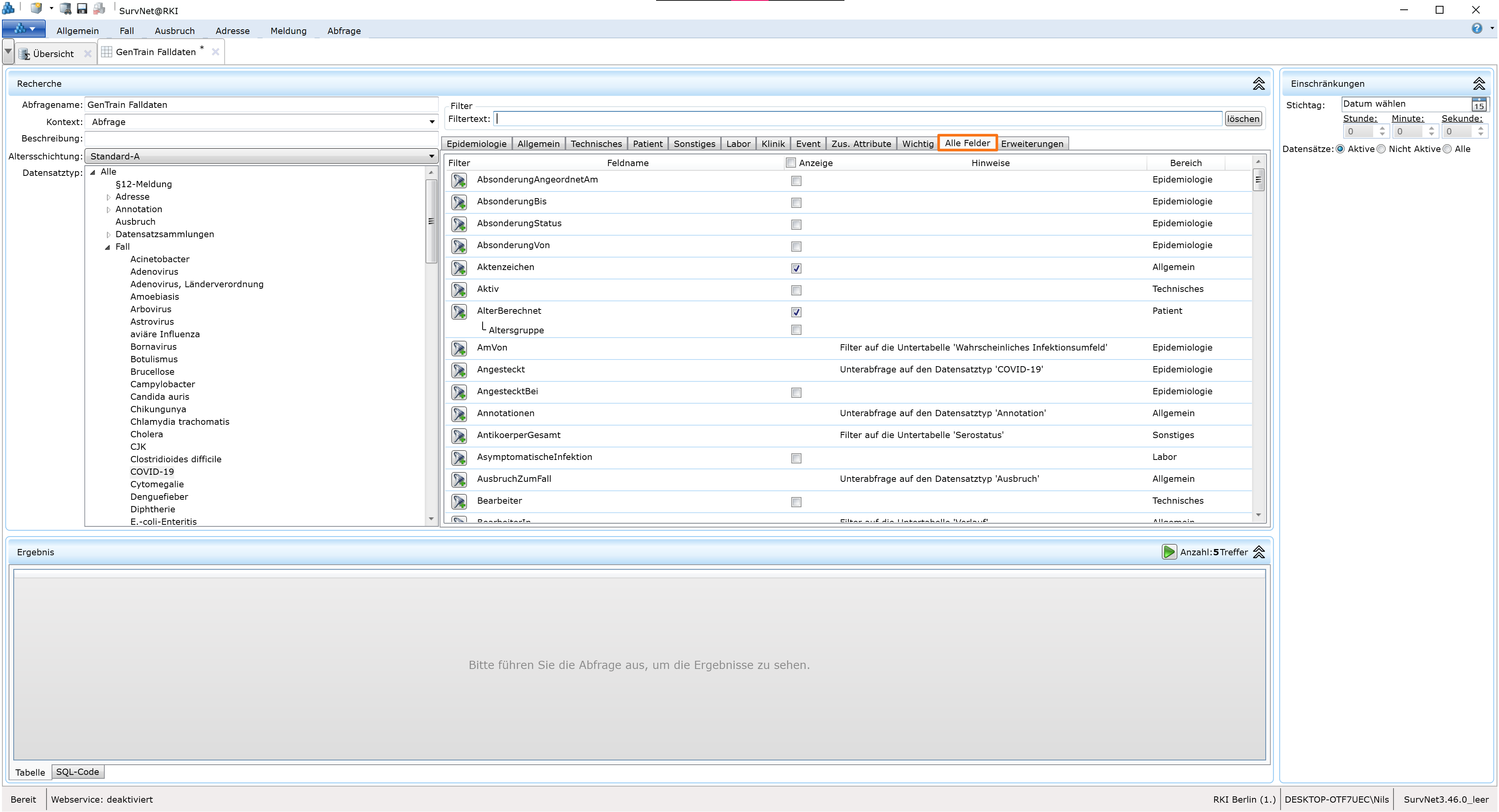
Ensure you are in the category “Alle Felder” to access all fields. This is the default when creating a new query.
If necessary, switch to the “Alle Felder” tab below the search bar.
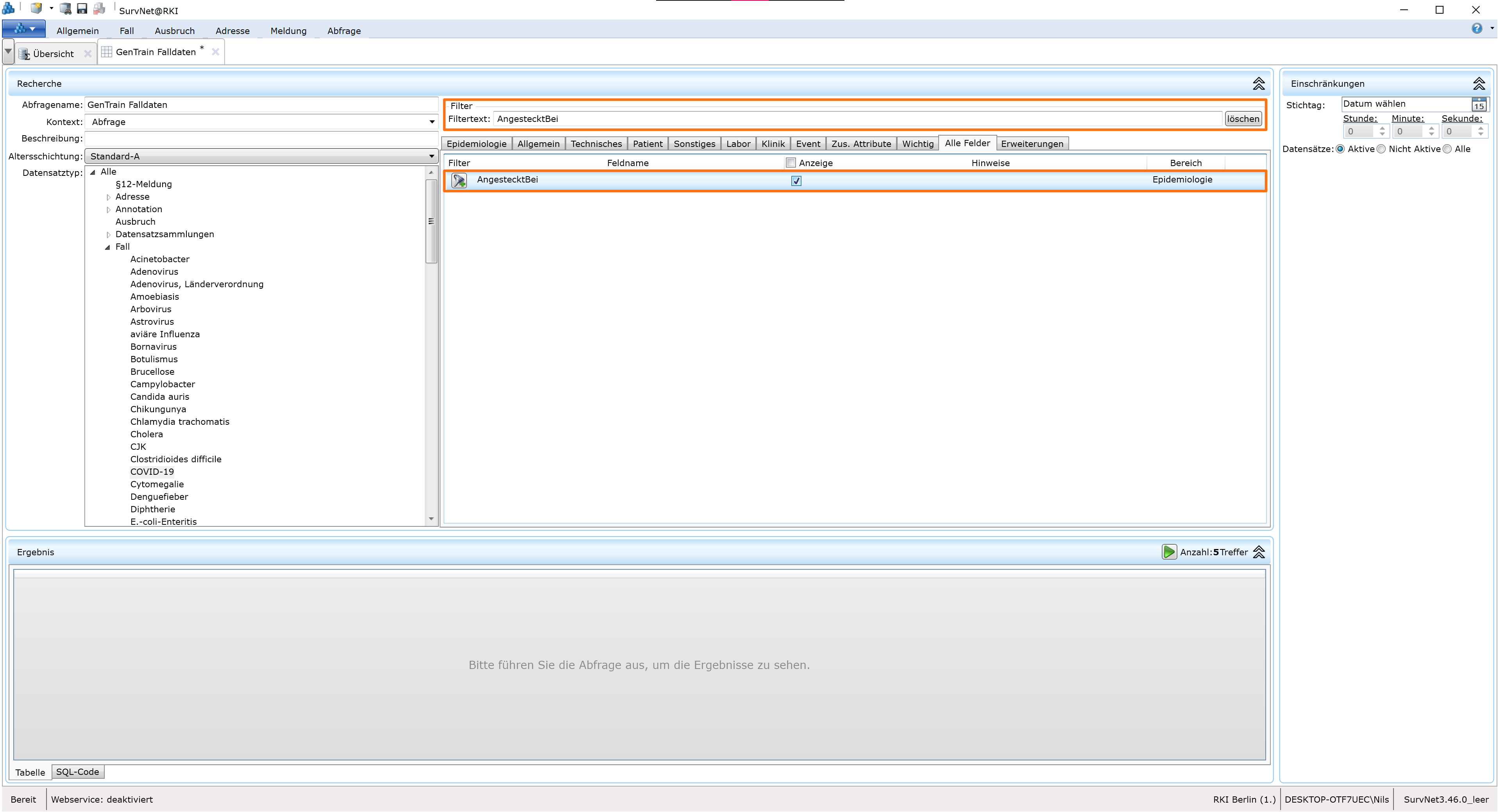
Search for “Meldedatum” and check the box for this field only (do not select subfields).

Next, select the “AngestecktBei” field as well.
Finally, add the patient’s name and address associated with the case, and the outbreak assignment.
Switch from “Alle Felder” to the “Erweiterungen” tab.
Search for “Patient” and enable the “Patient/-in des Falles” extension. Then search for “Ausbruchsinfo” and add this extension.
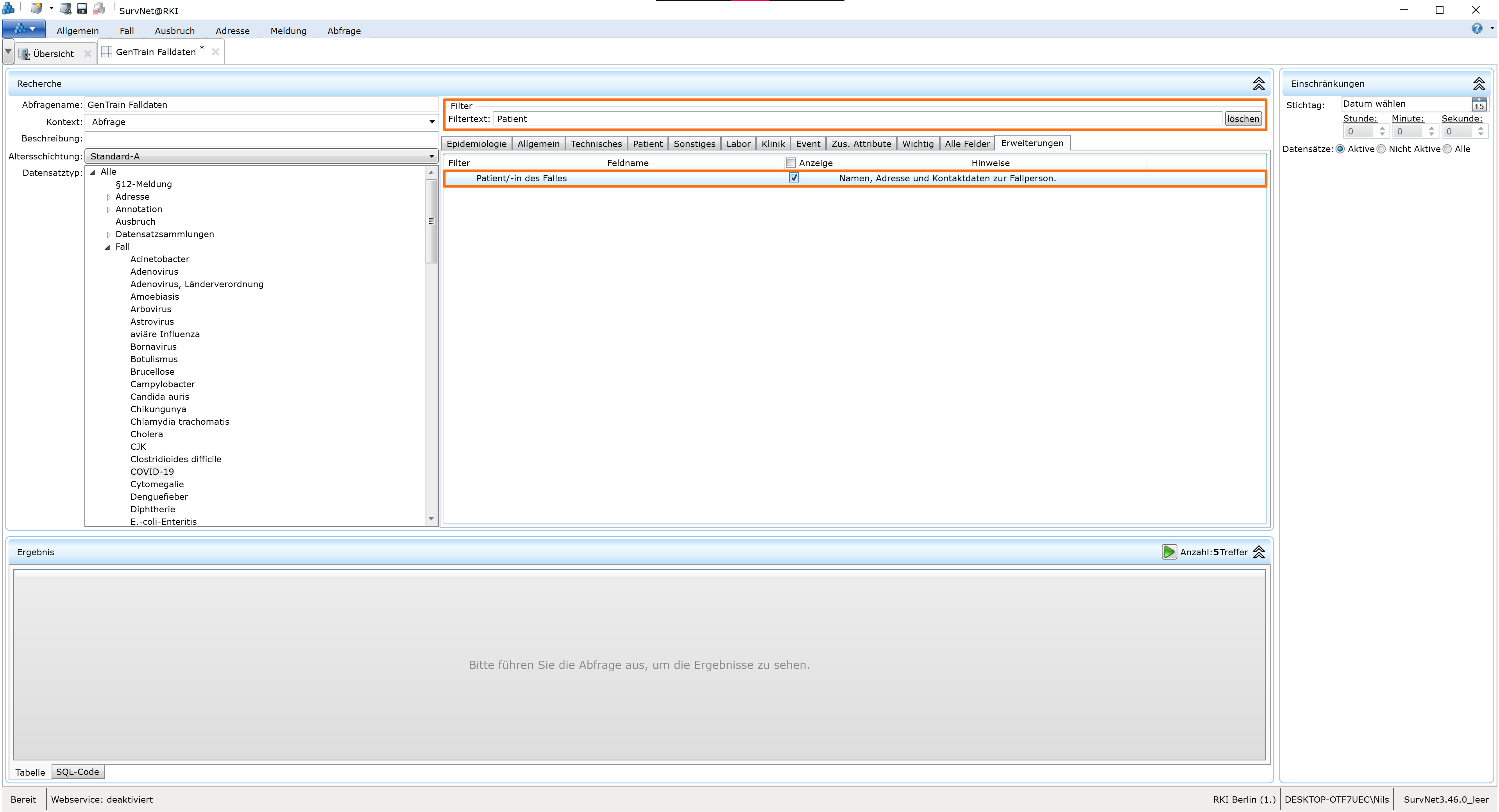
The case data query is now complete. You can optionally apply filters to narrow down your query.
Refer to the SurvNet manual for details.
Filtering by reporting period is recommended, as querying the entire dataset can take a long time.
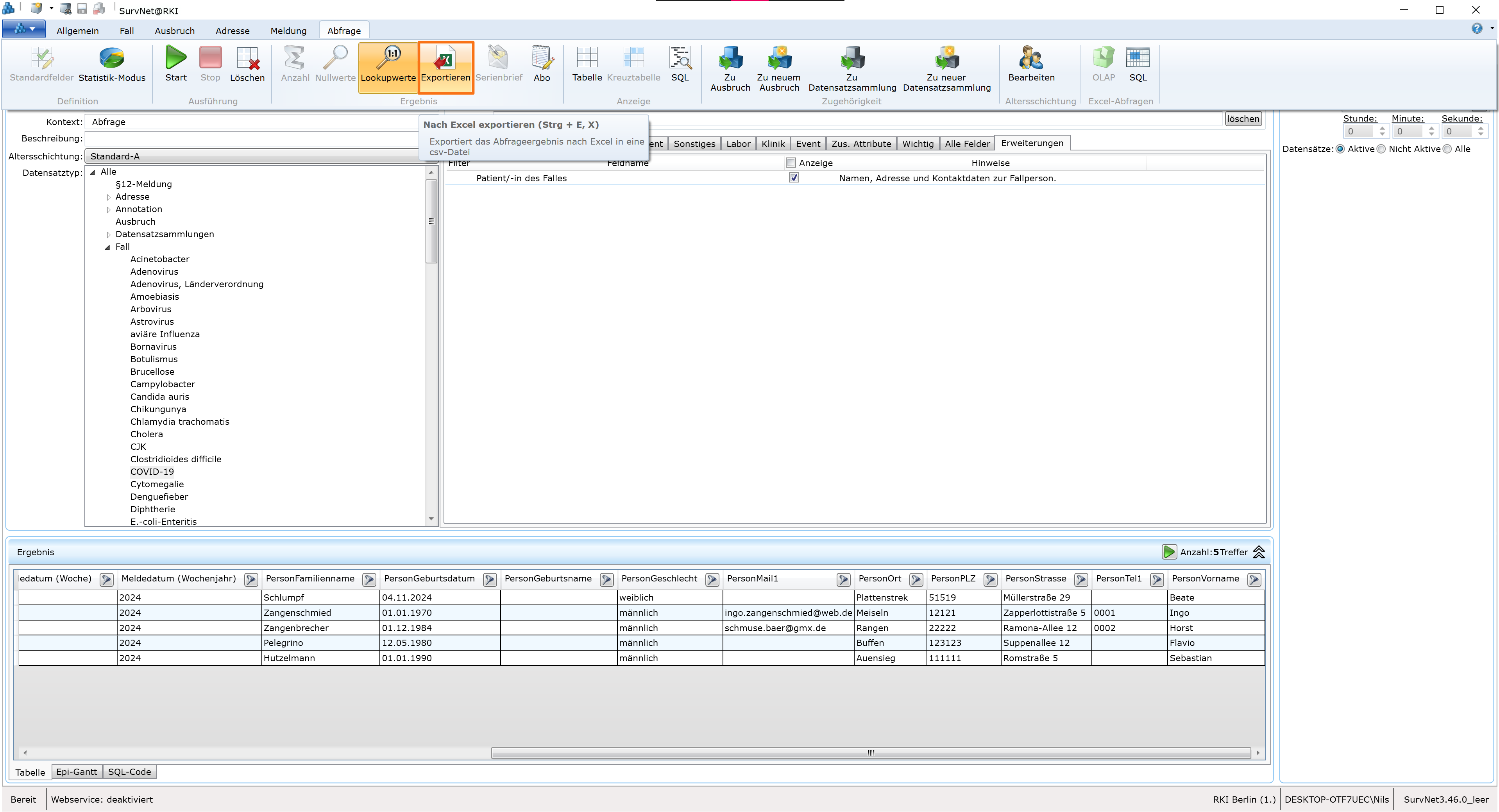
To run the query, click the small green Start button in the results area at the bottom of the window, or in the top menu, click Abfrage → Starten.
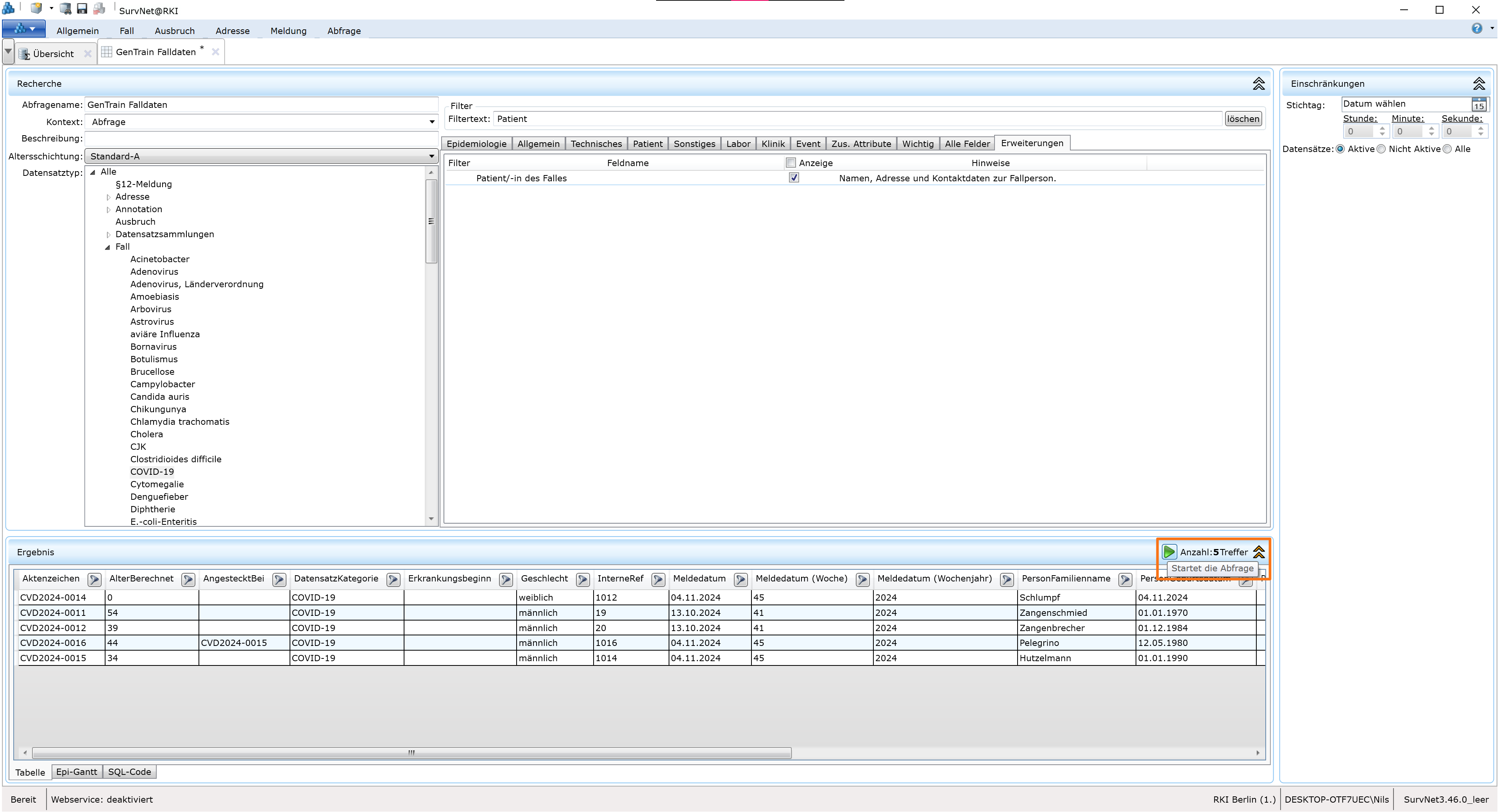
Ensure the resulting table includes the columns shown below.

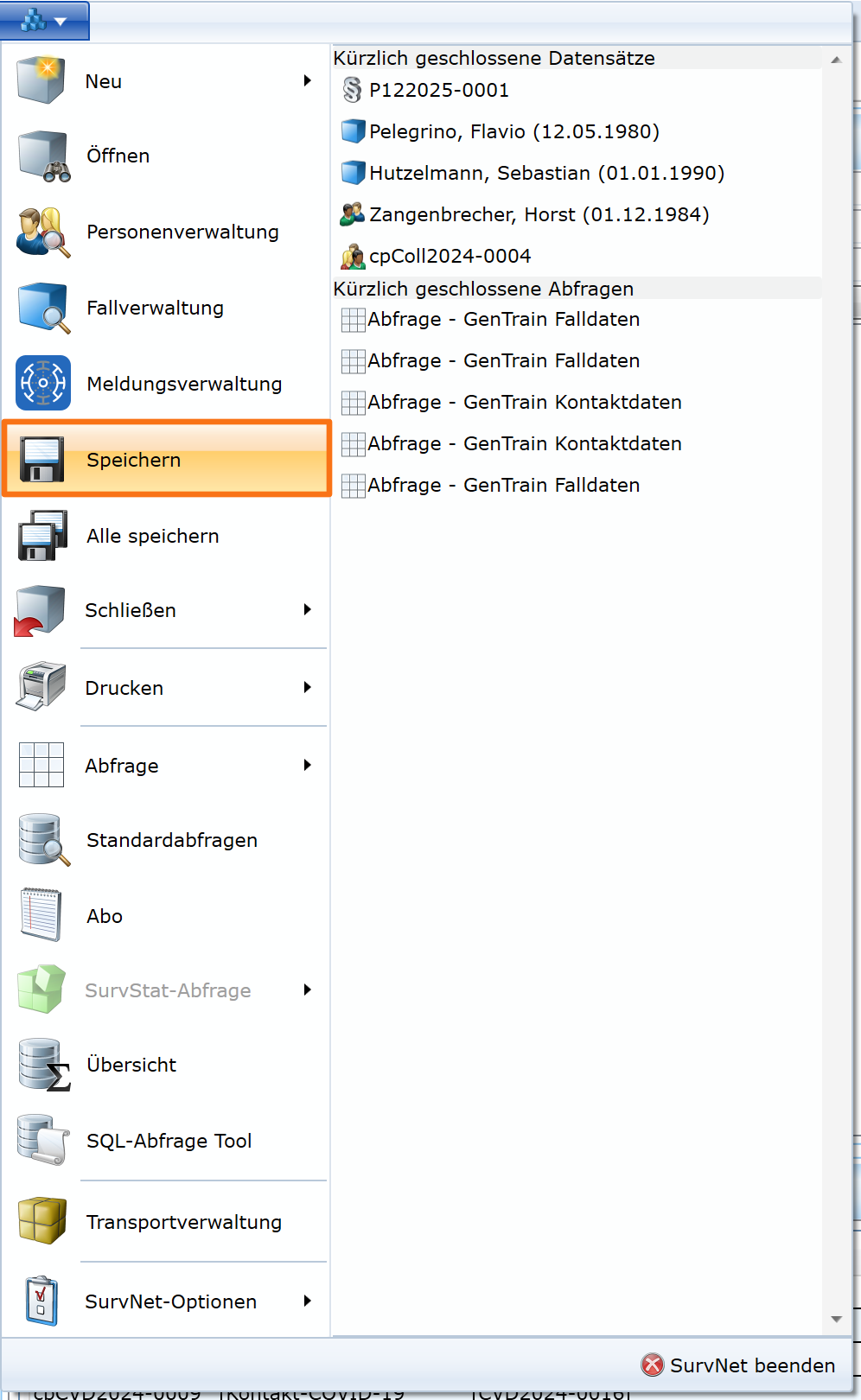
To save the query, press CTRL+S or use the drop-down menu via the blue SurvNet logo in the top-left corner and select Speichern.
A successful save is indicated when the small asterisk next to the query name in the tab title disappears.
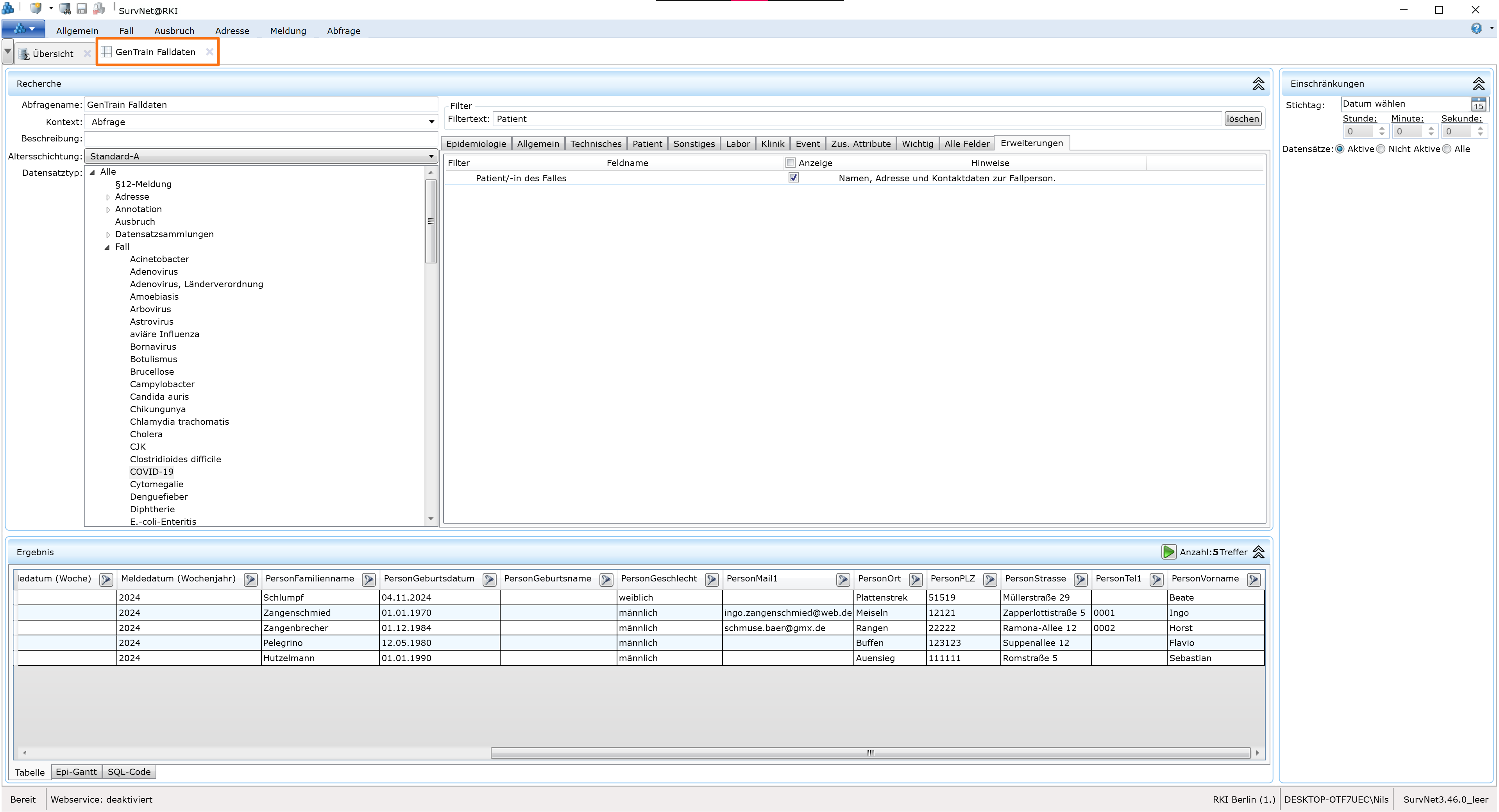
To export the query results, click Abfrage → Exportieren, choose a location, and enter “Fälle” as the file name.

Contact Data Query (Kontaktdaten-Abfrage)
The procedure is similar to the case data query.
Create a new query and name it, e.g., “GENTRAIN Kontaktdaten”.
Select Datensatztyp → Kontakt-COVID-19 (or another contact type depending on the pathogen).
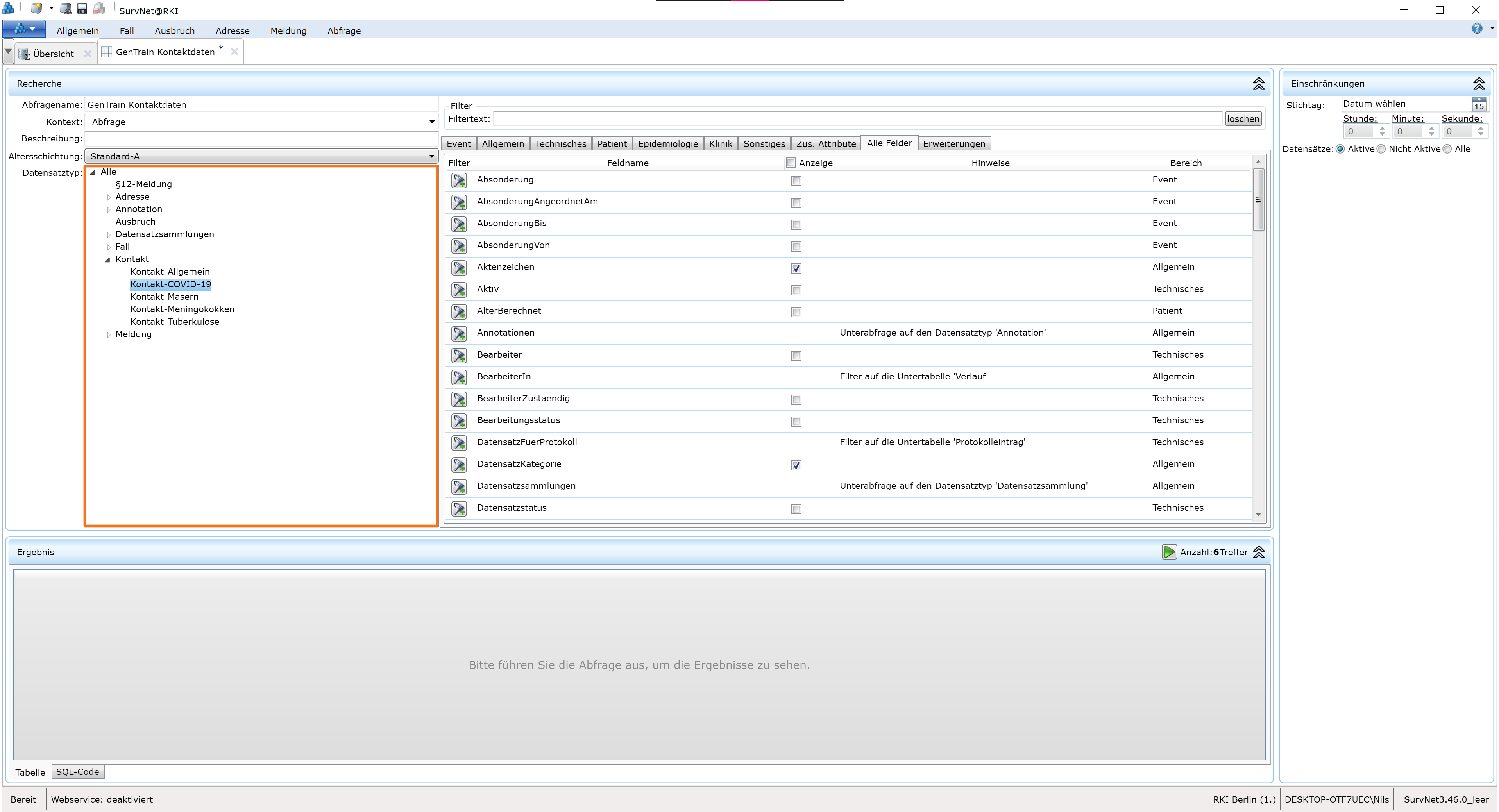
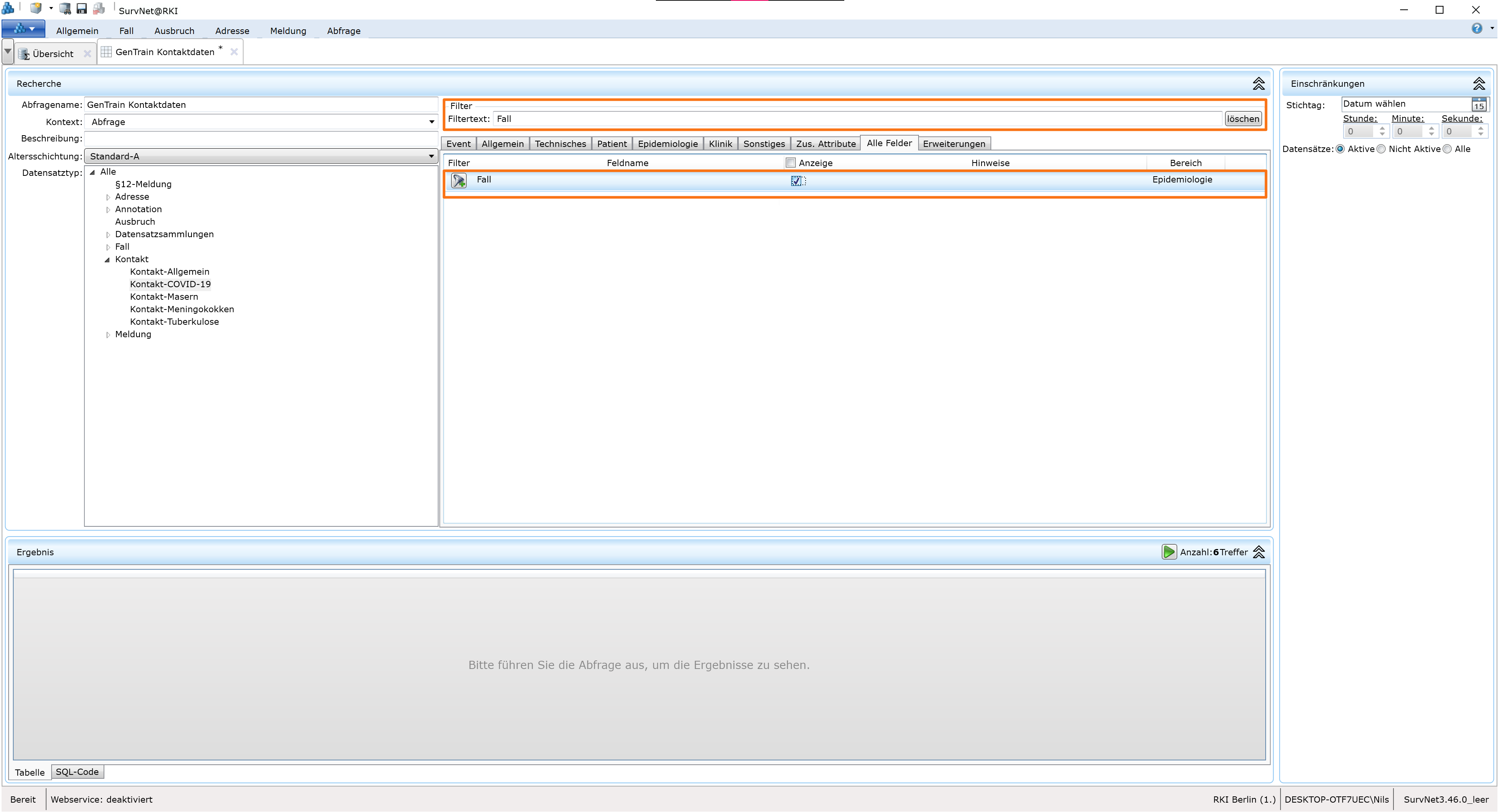
Add additional fields as described above, making sure you are in “Alle Felder”. Search for “Fall” and check the corresponding field.
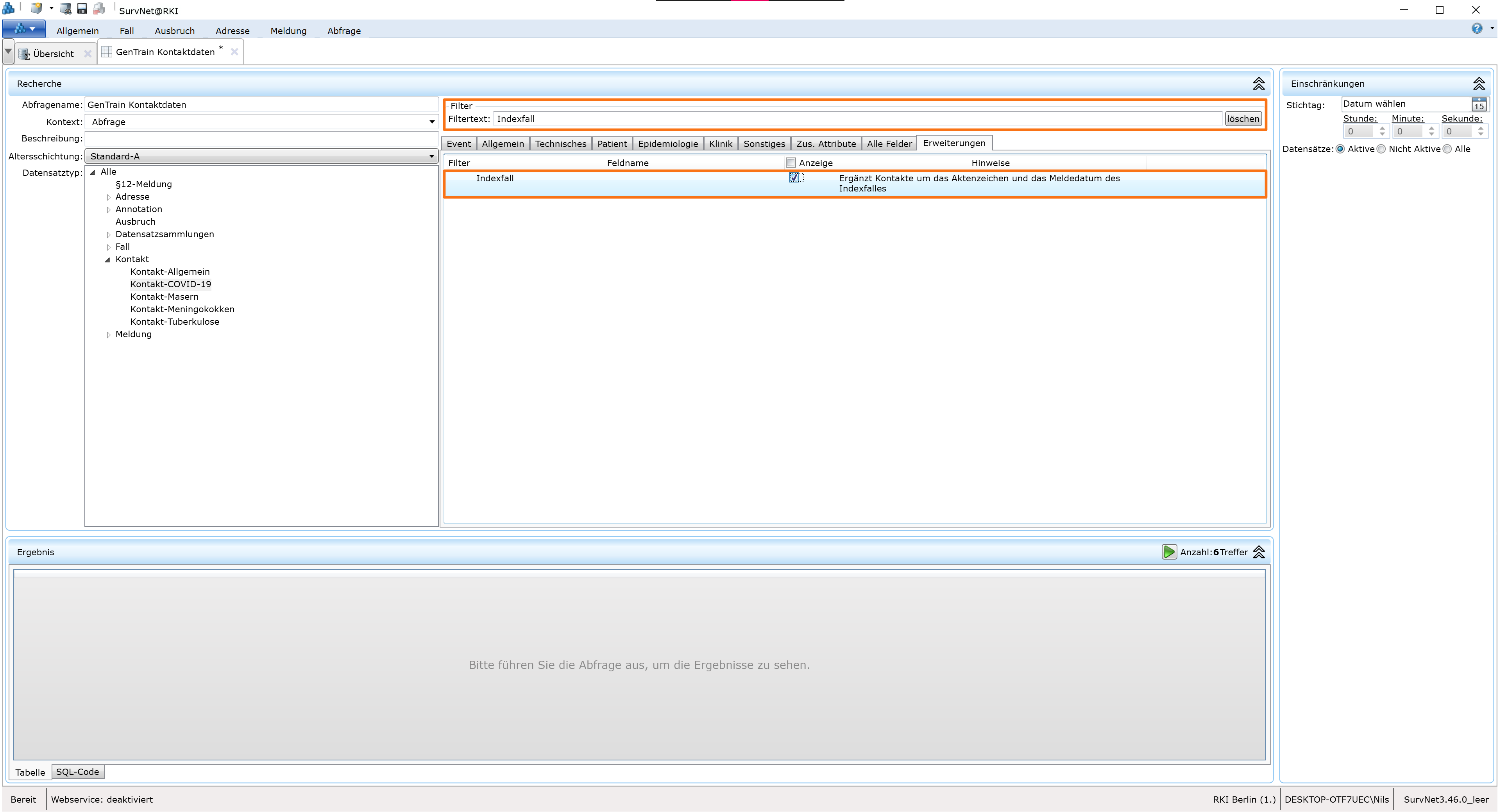
Switch to “Erweiterungen”, search for “Indexfall”, and enable this extension.
You can now optionally add filters, save, and run the contact data query. Ensure the resulting table includes the columns shown below.

Export the dataset as “Kontakte”.
Locating Saved Queries in SurvNet
Queries can be saved under descriptive names (e.g., “GENTRAIN Falldaten”, “GENTRAIN Kontaktdaten”).
To reuse a query, open the drop-down menu, hover over Abfrage, wait for the extended options, or click the small black arrow next to the field. Then click Öffnen.
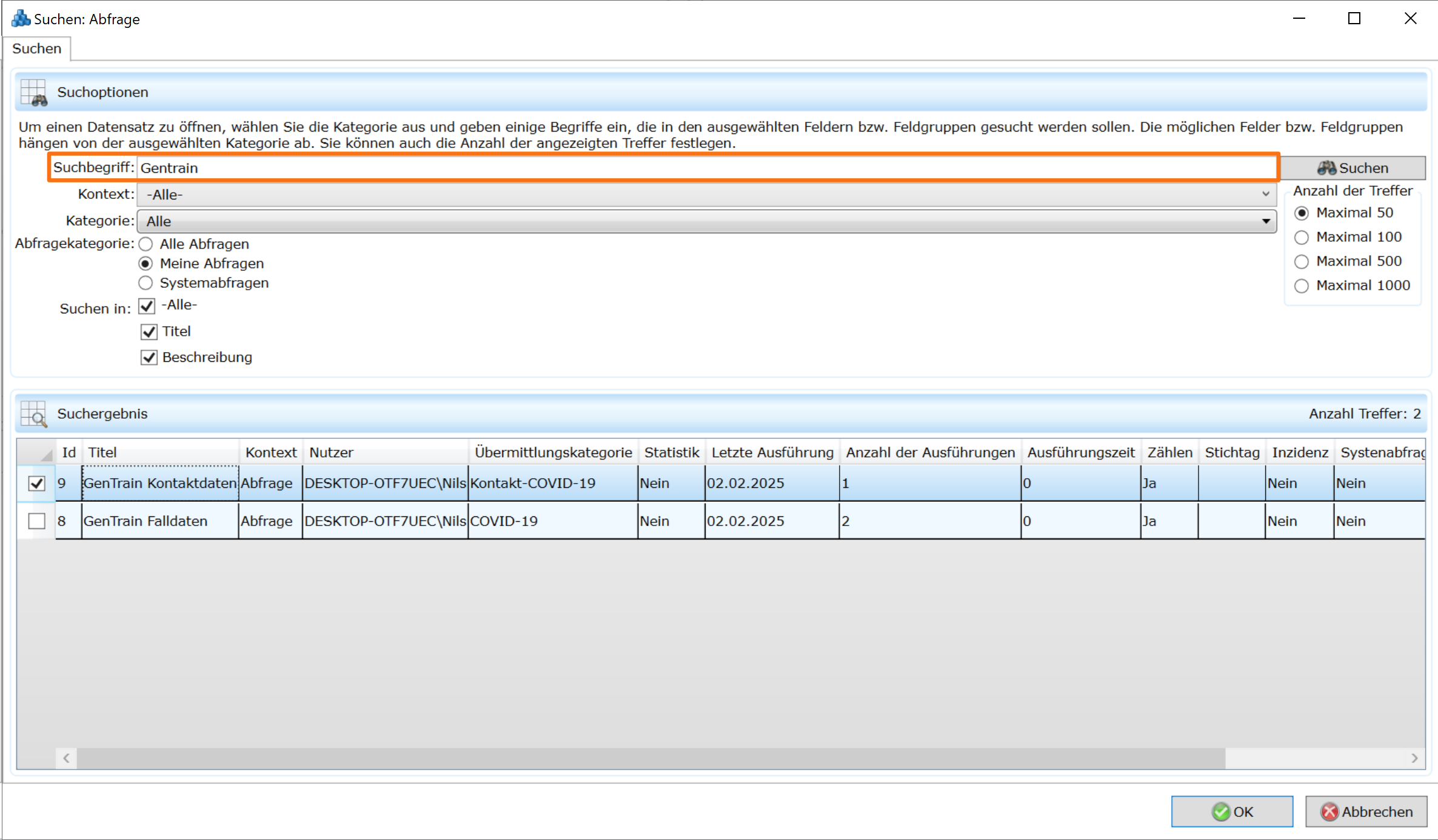
Search for the desired query using the Suchbegriff field, click Suchen, select the query from the list, and click OK to open it.
Importing Data into GENTRAIN
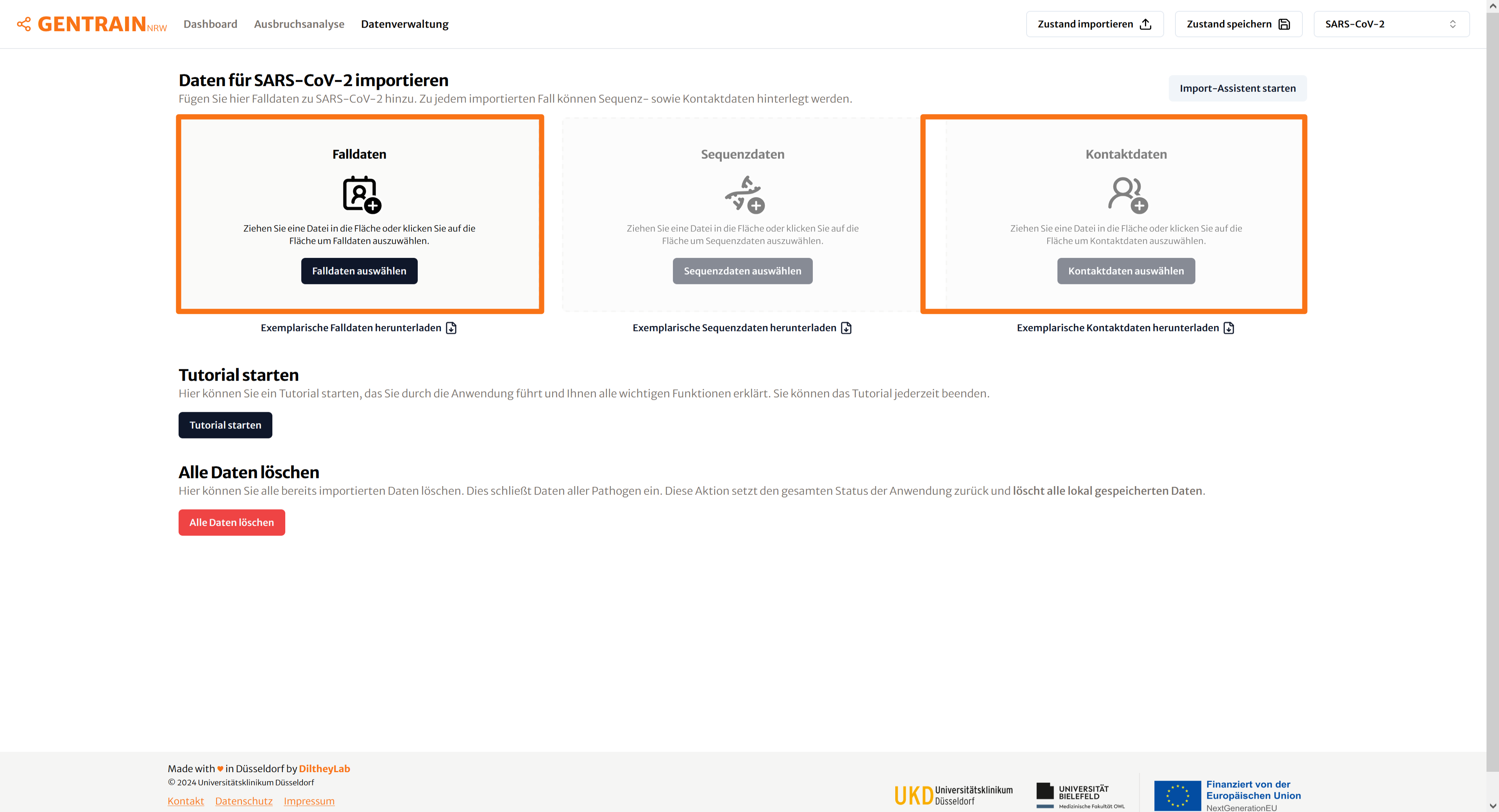
Navigate to the Datenverwaltung page in GENTRAIN.
Click Falldaten auswählen and select the case dataset exported from SurvNet.
For contact data, use Kontaktdaten auswählen.
The middle button, Sequenzdaten auswählen, is used to upload sequence data.